Free, open-source archive extractor and compressor for Windows

Hodozip

Unpack your archives.

Double-click to extract in place, without garbled filenames.
You can also drag and drop an archive to extract it. ZIP and 7z creation is now supported.

  • Current version v0.7.0
  • Windows 10 (19041+) / Windows 11
  • MIT License
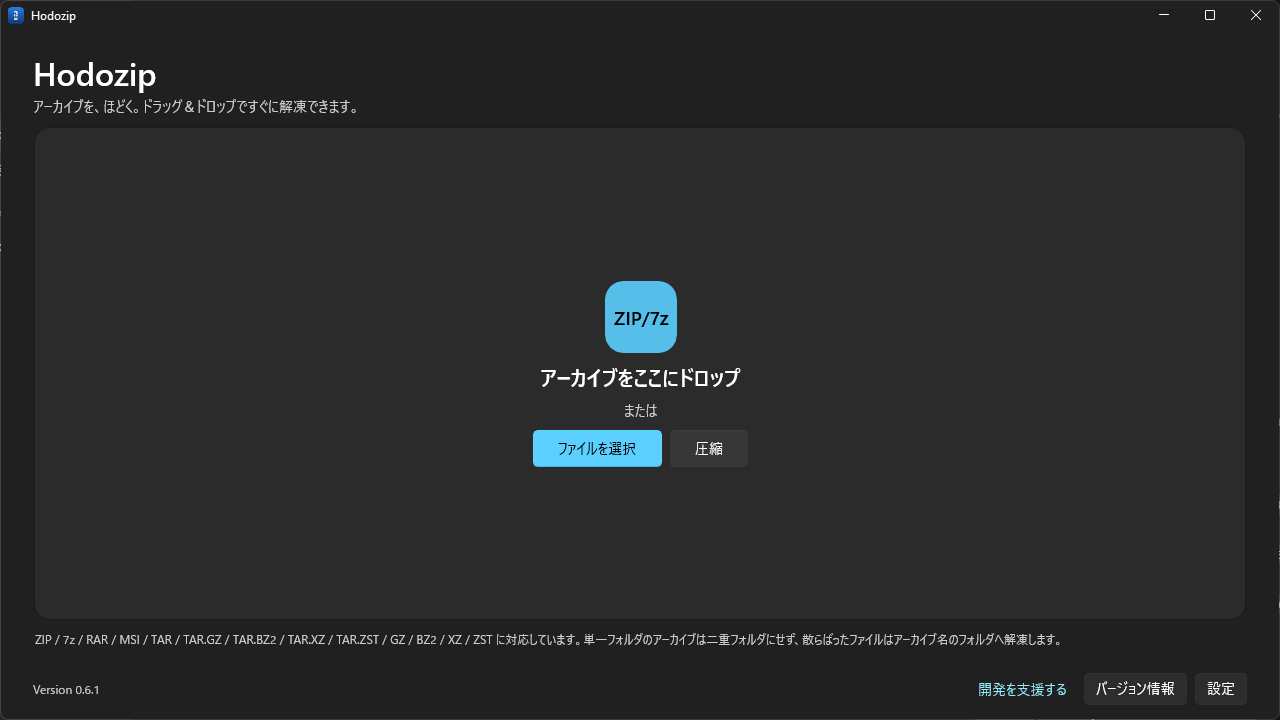
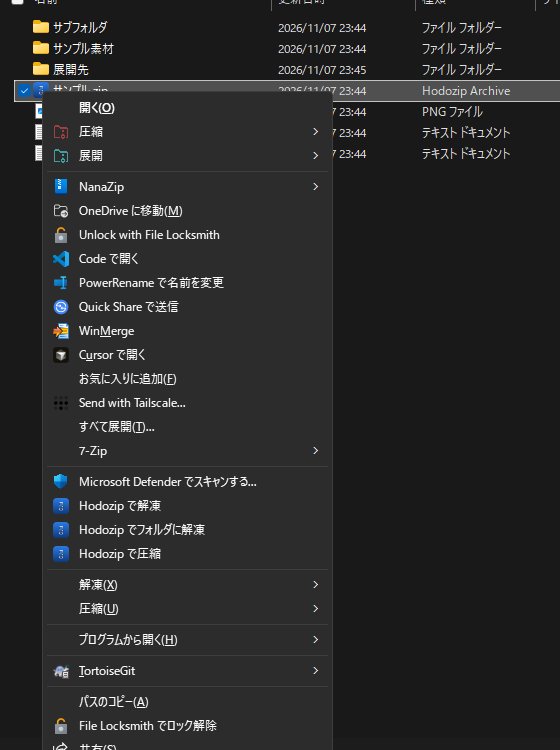
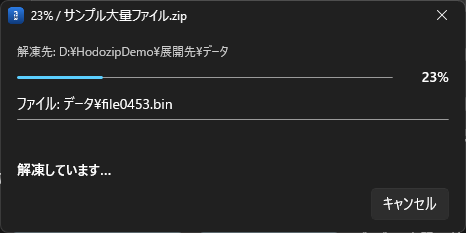
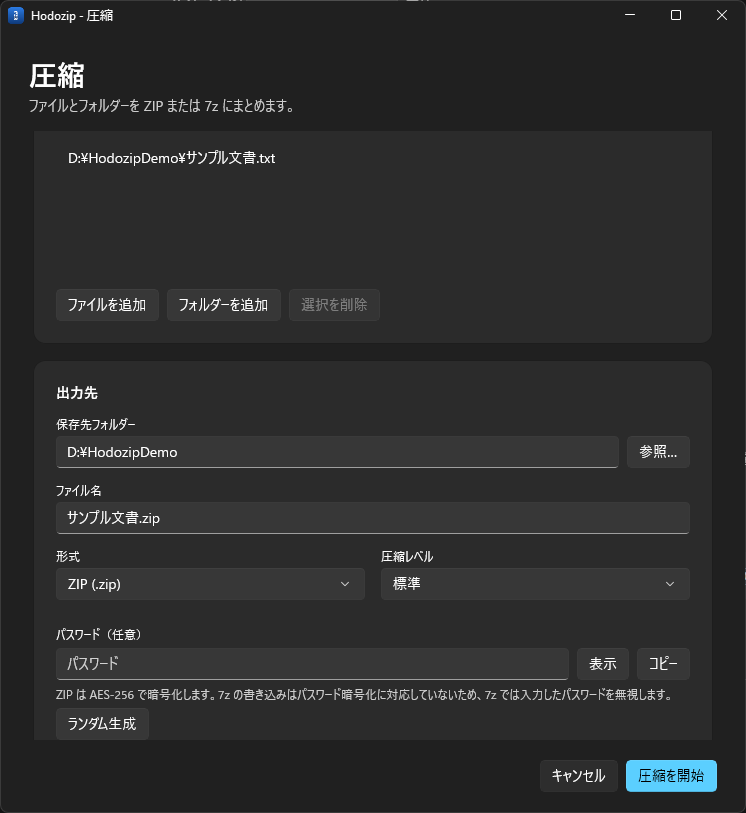
Hodozip's main window. Drop an archive here to extract it. The Explorer right-click menu with 'Extract with Hodozip', 'Extract to folder with Hodozip', and 'Compress with Hodozip'. The progress window while an archive is being extracted. The compression dialog, showing the password field and more.
Main window

Features

  • Extract immediately by double-clicking

    Double-click a supported archive such as .zip, .7z, .rar, or .msi and extraction starts right away. The familiar feel of classic extraction tools, brought to modern Windows 11.

  • Create ZIP and 7z archives

    Hodozip can now create ZIP and 7z archives. Choose the compression level (store / normal / maximum), an AES password for ZIP, and the ZIP filename encoding (UTF-8 / Shift_JIS). Start compression from the context menu or by dragging and dropping files.

  • Japanese / English UI

    Choose Follow system settings / Japanese / English in Settings. Language changes take effect the next time Hodozip starts.

  • Faster ZIP extraction with parallelism

    ZIP entries are extracted in parallel. In our large-archive benchmark, extraction dropped from 5,336 ms sequential to 806 ms parallel, about 6.6x faster (results vary by environment).

  • Automatic destination selection

    Hodozip chooses where to extract based on the archive contents. Archives that contain a single top-level folder are not wrapped in a duplicate folder.

  • Japanese and Chinese filename encoding support

    File names inside ZIP archives are detected as UTF-8, Shift_JIS, or GBK and extracted without garbled characters. Names without the UTF-8 flag are detected automatically, and you can also choose the encoding manually in Settings.

  • Password-protected ZIP support

    ZipCrypto and AES password-protected ZIP archives are supported. Hodozip asks for the password inside the app when it needs one.

  • Context menu support

    Right-click a supported archive to see "Extract with Hodozip", "Extract to folder with Hodozip", and "Compress with Hodozip" together with icons (the MSIX build uses the new Windows 11 menu; the installer build uses the unified classic menu).

  • Network access only for update checks

    Normal extraction and compression do not use the network. The automatic update check runs at most once a day and queries GitHub release information only. It sends only the information required for a normal HTTP request; no usage or personal data is sent. You can disable update checks at any time in Settings. There is no telemetry or advertising.

  • Manage associations in one place

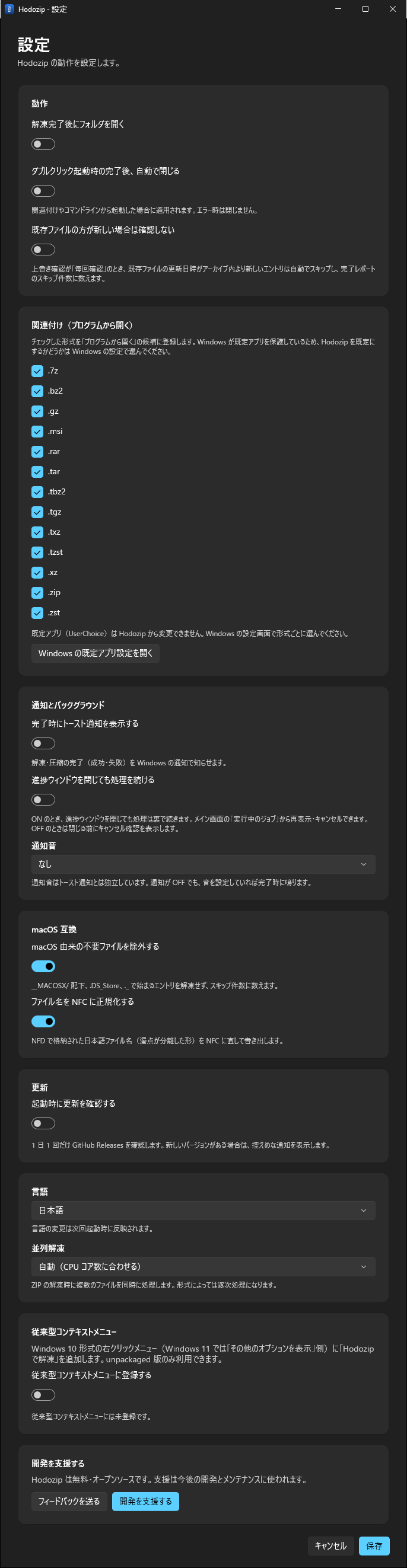
    See all 13 supported formats and choose per format whether Hodozip appears in "Open with". Changes apply immediately; the default app is still chosen in Windows Settings.

  • Notifications and background

    Get a toast and a notification sound when a job finishes. Keep processing after closing the progress window, then reopen or cancel the job from "Running jobs" on the main window.

  • Friendly with macOS

    Skip macOS metadata (__MACOSX, .DS_Store, ._) by default and normalize NFD Japanese names to NFC. "Create with macOS compatibility" makes ZIPs that Finder extracts without garbled names.

Supported extraction formats: ZIP / 7z / RAR / MSI / TAR / GZ / BZ2 / XZ / ZST. Creation supports ZIP and 7z. The UI is available in Japanese and English.

Screenshots

Hodozip main window. Drop an archive here or choose a file to extract it.
Progress window while extracting a large archive, showing overall and per-file progress and the destination.
Explorer context menu with the three Hodozip commands shown consecutively with icons: Extract, Extract to folder, and Compress.
Lower half of the Settings window: the association manager (a checklist of 13 formats), notifications, language, and other options, with the "Send feedback" button in the support card at the bottom.
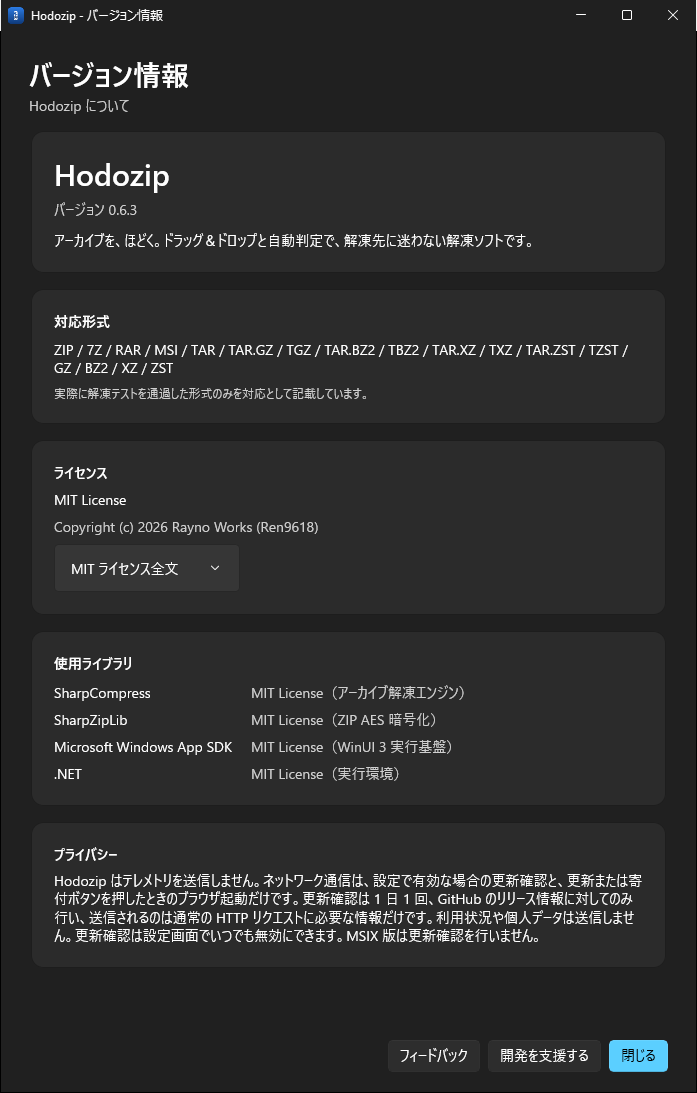
About window showing version 0.6.3, supported formats, and licenses, with "Feedback" and "Support development" buttons at the bottom.
Compression dialog showing the password field, show/copy buttons, and the random password generator.

Download

Get the latest version from GitHub Releases. Three distributions are available.

Installer build

Recommended

Hodozip-0.7.0-setup.exe

  • Installs per user into %LOCALAPPDATA%\Programs\Hodozip without administrator rights
  • Creates a Start menu shortcut and optionally registers the context menu and "Open with" candidates
  • Uninstall from Windows Settings → Apps
Get it from Releases

zip build

Portable

Hodozip-0.7.0-win-x64.zip

  • Extract the archive and launch Hodozip.exe; no installation required
  • Extract by dragging and dropping an archive or by passing a path
Get it from Releases

MSIX build

Experimental

Hodozip-0.7.0.msix

  • Registers file-association candidates for supported archives and the Windows 11 context menu
  • Requires registering the self-signed certificate before installation (see the How to use section)
  • Some organizations' security policies may prevent installation
Get it from Releases

The installer and zip builds check for new versions at startup (you can disable this in Settings). The MSIX build does not self-update.

Support & feedback

Report bugs and requests via the feedback form (no Google account required). If you use GitHub, you can also report them in GitHub Issues.

How to use

1. Install and launch

Installer build (recommended)

  1. Download and run Hodozip-0.7.0-setup.exe. It is unsigned; if SmartScreen shows a warning, choose "More info" → "Run".
  2. The install location is fixed to %LOCALAPPDATA%\Programs\Hodozip. Under "Shell integration" you can optionally register the context menu and "Open with" candidates (both enabled by default).
  3. Launch Hodozip from the Start menu after installation. Uninstall it from Settings → Apps → Installed apps.

zip build (no installation)

  1. Extract the downloaded zip file.
  2. Launch Hodozip.exe inside it.
  3. Drag an archive into the window or choose one with "Select file". Progress is shown while extracting, and "Open folder" opens the destination when it finishes.

MSIX build (experimental)

Install the certificate first, then the package. For detailed steps and uninstallation, see "MSIX installation" in the README.

  1. Download the public certificate Hodozip-Test.cer.
  2. Register the certificate in an elevated PowerShell window.
certutil -addstore -f TrustedPeople .\Hodozip-Test.cer
  1. Download Hodozip-0.7.0.msix from GitHub Releases and install it.
Add-AppxPackage -Path .\Hodozip-0.7.0.msix

To extract by double-clicking, configure Hodozip as the default app as described in the next section.

2. Set Hodozip as the default app for supported archives (extract by double-click)

Windows does not let apps force file associations. Follow these steps to make Hodozip the default for .zip and other supported extensions.

  1. Open Windows Settings → Apps → Default apps.
  2. Search for zip and select ".zip".
  3. Choose "Hodozip" from the list.

Alternatively, right-click a .zip file → "Open with" → "Choose another app" → "Hodozip" → "Always use this app". The installer or MSIX build registers itself as an association candidate.

3. Extract from the context menu (MSIX / Windows 11)

Right-click a supported archive and choose one of the following. The menu labels follow the OS display language.

  • Extract with Hodozip — chooses the destination automatically based on the archive contents.
  • Extract to folder with Hodozip — always creates a folder named after the archive and extracts into it.

If the entry does not appear in the new Windows 11 context menu, choose "Show more options" (or press Shift + F10). Restarting Explorer after installation can also help. This menu targets Windows 11 and may not appear on Windows 10.

4. Compress an archive

Start compression in any of the following ways.

  • Drag and drop — drop files or folders onto the main window.
  • "Select a file" — choose a file with the button on the main window.
  • Context menu — right-click a file or folder and choose "Compress with Hodozip" (multiple selection is supported).

In the compression settings window, choose the output destination and filename, format (ZIP / 7z), compression level (store / normal / maximum), password, and ZIP filename encoding (UTF-8 / Shift_JIS). ZIP passwords use AES encryption. The 7z password is outside SharpCompress Writer support and is ignored. If the output file already exists, the existing collision policy applies (numbered name or overwrite).

ZIP and 7z are the only supported creation formats. Creating tar-family or RAR archives is not supported.

5. Automatic updates (installer / zip builds)

At startup, Hodozip checks GitHub Releases for the latest version. Checks are limited to once per day and fail silently. When a new version is available, the main-window banner offers "Update", "Later", and "Skip this version".

  • Installer build — downloads setup.exe, verifies its SHA256 digest, and then launches the installer.
  • zip build — opens the Release page. Replace the files manually after downloading.
  • MSIX build — automatic updates are disabled. Update through the Store or manually.

You can turn update checks on or off with "Check for updates at startup" in Settings (on by default). The check sends only the information required for a normal HTTP request; no usage or personal data is sent.

Support development

Hodozip is free. If you find it useful, please consider supporting its development and maintenance.